CabMasterPro User Guide
GigaDXF can be used a open DXT file to create manufacturing list files and customised labeling for parts. It streamlines production by integrating with EzyNest Software for nesting, allowing for material, rotation, and quantity adjustments.
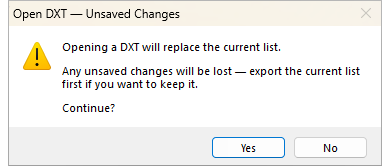
It is important to note that you can only open/work with one DXT at a time, therefore you need to export the current list before opening a new DXT. For multiple selections, refer to the topic on Import DXF.
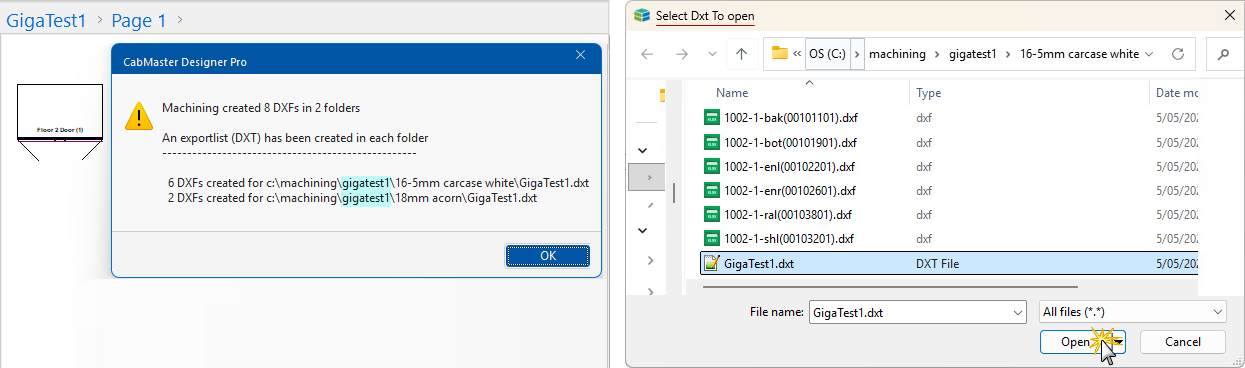
Imports a single DXT file by using the browse dialog made available after pressing the command.
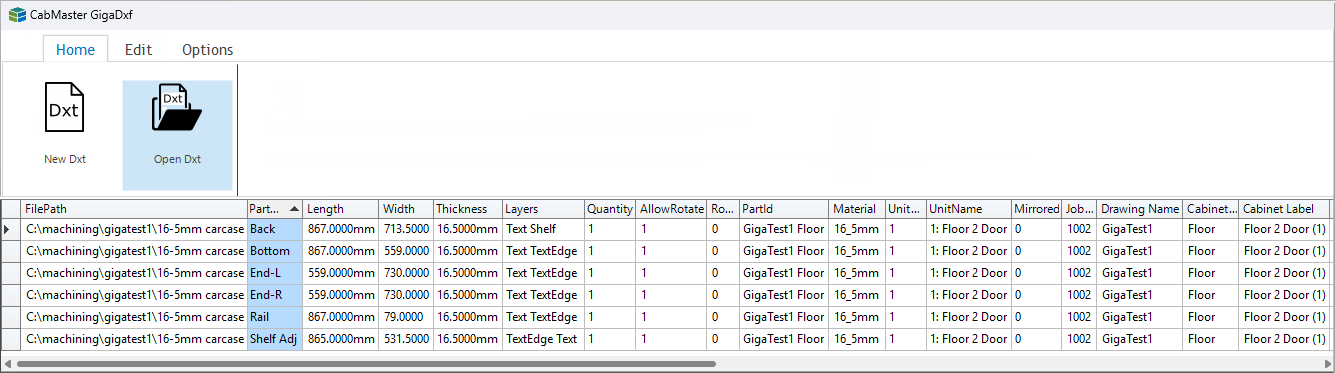
When data is imported or created in GigaDXF it is in the form of a table, with columns and rows, for data management. It allows you to edit, add new data at either the bottom or right of the tables and provides easy sorting in ascending or descending order by clicking on the column header.
In this example, we have exported a job, GigaTest1, from CabMasterPro and opened the resulting DXT into GigaDXF.
Remember: You can only open/work with one DXT at a time, therefore you need to export the current list before opening a new DXT.
The DXT contains Cabinet, Component, Edging and Label data - see Prepare Labels.
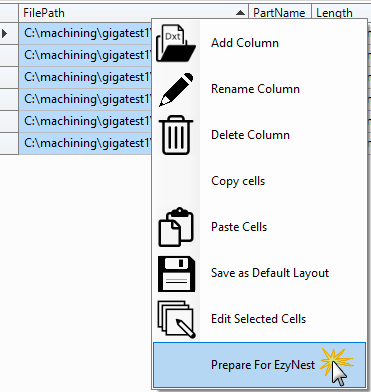
In order to prepare DXT files for EzyNest, you need to select Prepare for EzyNest from the right click menu.
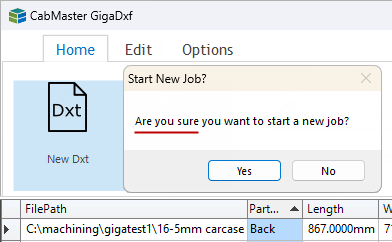
The New DXT command will clear all previous data and this cannot be undone.