
CabMasterPro User Guide
How to switch libraries from within a drawing
To change to a different library in a drawing, use the Library drop list on the Home tab as shown below. When you do, the current library will be unloaded, and the new one opened.
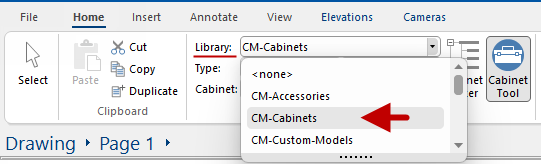
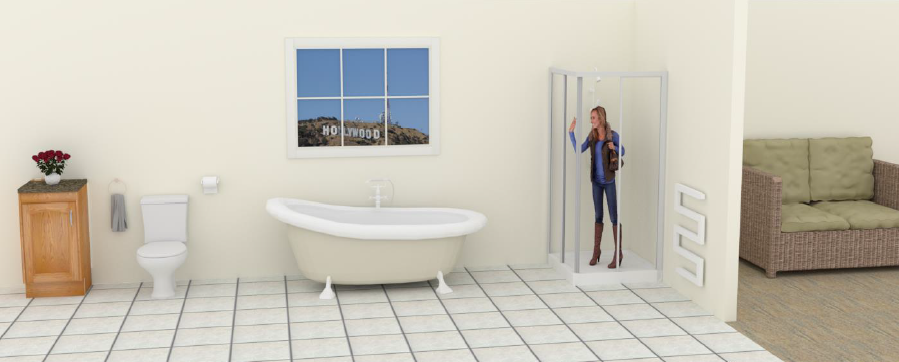
There are a number of libraries available that are supplied with Accessories and Models. The CM-Design-2 library, for example, includes bathroom accessories such as baths and showers, as well as people, office and outdoor items and more models for everyday drawings.
You may also be able to create your own library (dependent on software purchased).
A starter catalog (.qim) and a 'Based on' library (.qil) is provided to all users which are located in the <your CabMaster>/Library folder. Library Properties are overwritten with Catalog properties and together they initialise Drawing properties for a new drawing.
When loading a library, by default, CabMaster looks for a .qim file as well as a .qil file, and loads them both together. The cabinet image gallery is the .qiz file.
This makes it possible to duplicate and rename the original CabMaster catalog (e.g. CM-Cabinets.qim) file, so that multiple catalogs (.qim) can be used with only one library file (.qil). See topic on the Library Catalog Manager, as this is where you can fully customise catalog files (.qim).