CabMasterPro User Guide
 |
 click on the area of interest on ribbon image above.
 It allows you to select one (for editing) or multiple cabinets/items at the same time, allowing you to copy/paste for faster reproduction of previously drawn cabinets/items.
See topic on the Select command and the tutorial on Selecting and Editing Objects.
This Group of commands allows you to Cut, Copy, Duplicate and Paste.
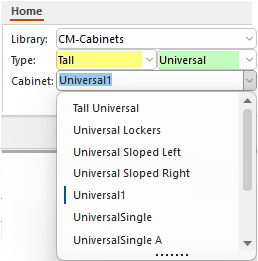
This group of four filters allows you to quickly locate and select a cabinet/item to add to your current job/drawing...
Normally selected when starting the program application.
Extra Note : Filters by SubType = Universal - click to view
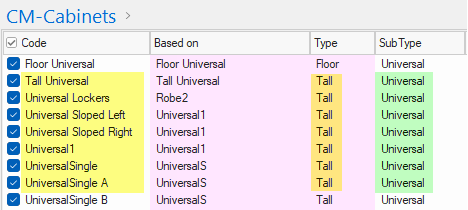
This is a snapshot of the Library Catalog Manager for the CM-Cabinets library. It has been sorted so that you can compare the Cabinets available with the Type and/or SubType filter used in the image on the right.
The SubType can be customised/renamed as per your requirements to make this more relevant to your business. See topic on how to create a Custom Range in the LCM.
If in Plan View, click on the plan to place in your drawing. If in List View, click on the Add from Library button or use the Keyboard Shortcut [F12].
Keyboard Shortcuts can also help you to get the cabinet into the correct position.
Cabinet Labels can also be changed to suit i.e. can be turned off for a cleaner view.
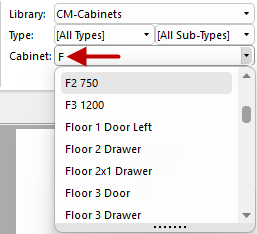
CabMasterPro offers a large selection of cabinets which can be filtered in a number of ways using the ...
See discussion above on Cabinet Selection, to understand how this works.
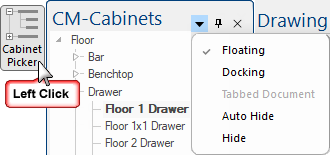

Simply left click on the Cabinet Picker button to turn on/off.
The picker window is by default docked to the left but this can be changed. If you want to make the most of the available screen use the Auto Hide feature. See the topic on Docking or Floating for a full discussion.
Tools such as the Cabinet Tool and Drawing Tools are just like a staging area where items are prepared for addition to a drawing. The background colour is blue, providing a visual confirmation that you are about to use the properties of the selected tool.
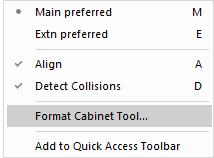
Right clicking on a tool will present a menu allowing you to 'Format..' a cabinet or drawing tool before placement.
Any changes made to the default tool will be saved upon exit of the software.
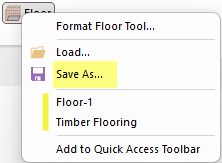
If you want to keep the specifications made to an existing tool then, before making changes, use the Save As... feature (e.g. Timber Flooring), to create a tool that can be loaded in future jobs - see Creating Custom Tools.

The Cabinet Tool is used to customise a cabinet before placement and provides a quick method for inserting a cabinet from the library. When you select a cabinet from a library, all the data for that cabinet is placed into the Cabinet Tool. To confirm that you are updating the tool, the background colour of the property sheet will be blue.
Then, provided the Cabinet Tool is active when you click on the drawing (button depressed) the cabinet described by the current Cabinet Tool data is inserted at the point on the drawing where you have clicked.
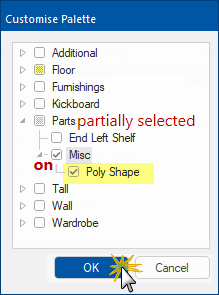
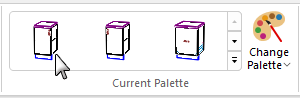
The distribution base library (.qil) provides all with a preload of some useful palettes, which are shown as images in Current Palette.
The Change Palette tool allows you to Add your favourite palettes for quick use and customise using a tree. The example shows the checkboxes in the tree are three-state i.e. on, off or partially selected, which lets you select and deselect subtrees of cabinets for your palette.
When you save a custom palette as an end user, it saves in the catalog (.qim). Note: If you make additions/changes to the gallery then you will need to Regenerate Images.
This feature is currently not available and is therefore turned off on the File Options [F10] > Advanced page.
The Drawing Properties, or defaults, can be customised for each job and overrides the Catalog/Library Properties. However, you can override the drawing properties by customising the Cabinet Properties.
A Quick Access Sidebar can be enabled for all cabinets and other items, which lets you adjust a cabinets' Width, Height, Depth or Position and Angle on the plan without opening the cabinet properties allowing you to make minor modifications much quicker.
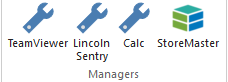
TeamViewer is used by our CabMaster Support Team for secure remote access, support, and collaboration. It allows users to control computers, servers, and mobile devices as if they were physically there, making it ideal for IT support, remote work, file transfer, online meetings, and managing devices from anywhere.
An ordering interface, reports and drawer tables are available. This means that hardware items included in a drawing/job, which are supplied by Lincoln Sentry, can to be automatically sent to the supplier website to create an on-line order. This is accompanied by a CabMaster report listing the items.
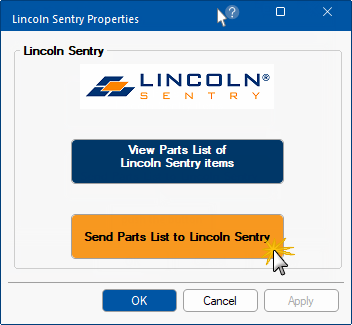
Click on image to view sample CabMaster listing
With the latest versions of CabMasterPro that have this command available on the Home tab, you no longer need to enable the Lincoln Sentry plugin.
However, if you want more details on How to Enable a PlugIn, click on the link.

This command button will open the Standard Windows calculator, which can also be opened using the applicable button on your keyboard.
All of our tables for drawer runners, handles, hinges and materials are now available for automatic download and install.
For a full discussion on how to use this feature, follow this link to HowTo topic
Templates are normally provide with your initial setup but can also be downloaded from StoreMaster.