CabMasterPro User Guide
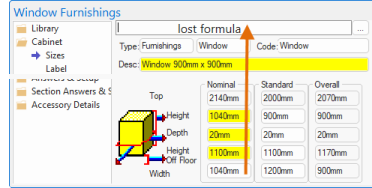
Previous to Version 14, formula controlled fpage entry boxes for things like CabinetWidth were adjusted by adjusting the variable being controlled. In very old versions, when things like drag/resizing of a cabinet/window, the formula would be lost, as shown right.
The change in Version 14 was required because when placing doors and windows from FlexiJet imports, it was noticed that things like the WindowWidth and the power point socket height off floor formulas were of the form WindowWidth + extra formula bits for tweaking to suit arch etc
The new code explained here, picks up formulas with a leading simple variable that can be automatically adjusted in the background. It will do so when it can, but of course if the formula is too complicated it still has to break it to change the value (as it must). A side effect of this change is that moving cabinets in elevation with Move3D dialog now works better for things like the power point socket.
Often the raw size of a cabinet or decorative item is calculated from a more meaningful sizing entry box on one of its friendly pages.
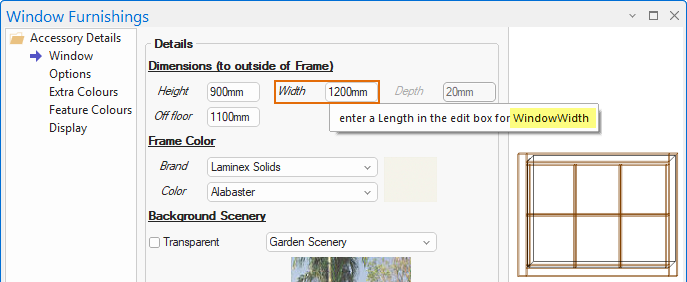
For example, in the decorative item called Window, there is a friendly page that has an entry box for Width and if you hover over it, the tooltip shows it is controlled by the middleware variable called WindowWidth.
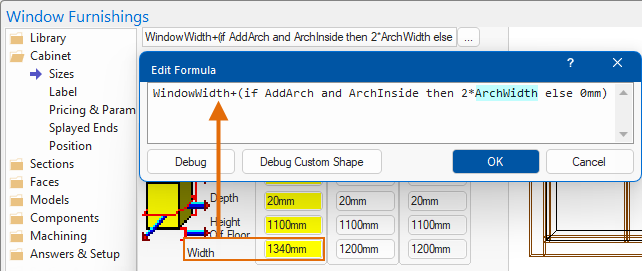
But the actual width of the item on the developer Cabinet Sizes page may show a different number like this…
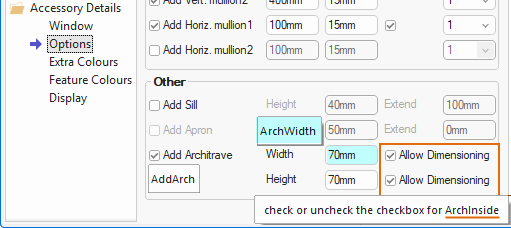
In this case, the formula has added ArchWidth x2 i.e. 140mm to the WindowWidth1200mm (i.e. nominal width is now 1340mm) due to fact that, on the Accessory Details > Options page, both the AddArch and ArchInside variables are set to yes/ticked.
When we resize the window on the drawing by stretching or shrinking it, we really want the displayed WindowWidth on the Window page to get updated. It is the item Nominal Width (1340mm above) that actually changes when you resize by dragging the right edge of the Window. Because the formula behind this size is “WindowWidth+extra bits” the application can detect this use of the friendly page variable WindowWidth and just directly change that without losing other parametric behaviour.
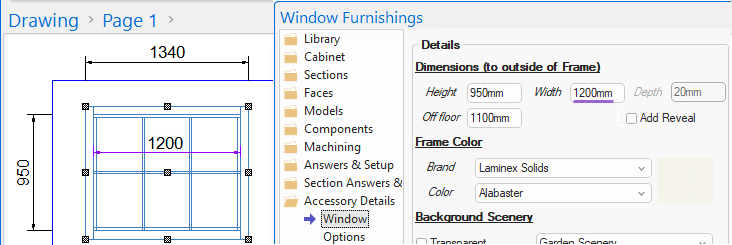
In the above example, we are looking at a window of Width 1200mm in Elevation View.
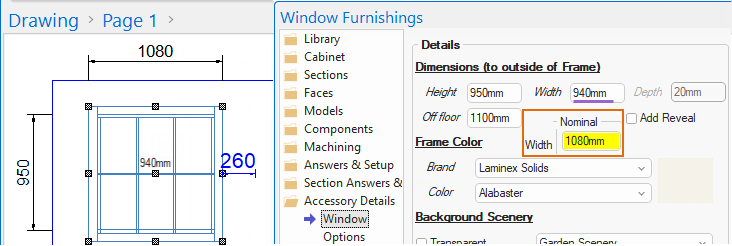
By grabbing the handle at the middle of either vertical edge (e.g. shown below right edge) we can drag-resize to shrink the window width by 260mm.
Notice that both the Window Width and Nominal Width (true item width) has been reduced by 260mm to 940mm and 1080mm respectively. The true item width still has that same working formula i.e. WindowWidth+extra bits.
This means that the application has to reduce the true item width (Nominal Width) from 1340mm to 1080mm because there is a formula behind that true width calculation. The application then tries to maintain the formula in place and will find and reduce the control variable WindowWidth, correctly displaying the updated width by reducing that from 1200mm to 940mm, without incorrectly losing the formula.
Formulas consisting of a leading variable + or – extra formula bits are recognised when resizing items in the drawing, and the underlying control variable is adjusted instead of removing the formula.