CabMasterPro User Guide
Options [F10] dialog used for selecting and editing languages is available from the File menu > Options or use Keyboard Shortcut F10.
A translations file contains text that can be translated for the interface of the application. Translation files can be used to change the wording for a small handful of terms e.g. if you want to localise terminology [color/colour]. It can also be used to change the language display e.g. English to Chinese.
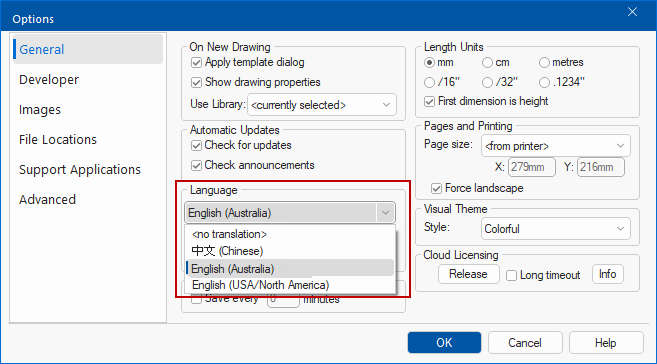
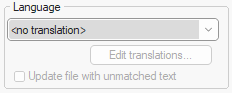
When <no translation> is selected, then the translation options are disabled (greyed out as shown).
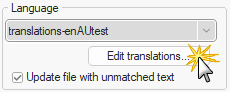
When a translation file is selected, the Edit translations button and Update file with unmatched text checkbox is made available.
Translations are a fantastic way to personalise the terminology within CabMaster Software™. You can literally change any word to something different.
Our CabMaster Support Team will provide assistance if you are not familiar with it.
 Watch the Video A Minute with Mike : How to use the translation feature to make CabMaster's terminology suit lingo specific to your business.
When you select the Language from the drop list, your CabMaster Software™ application is translated into the selected language
The following example shows your CabMaster Software™ application translated into Chinese.
A translations editor dialog is provided to allow end users to make minor translations changes to suit preferences.
When a translation file is selected from the drop list, the Edit translations... button is made available.
When you click on the Edit translations... button, a dialog is presented which allows end users to make minor translations changes to suit preferences. This includes allowing a change to another full language, e.g. Chinese, or simply personalise terminology to suit your own shop.
For this discussion, a temporary test file was created by coping an existing file [translations-enAUVic. txt] and changing the name.
All files within the ProgramFolder, whose file names start with "translations" will be recognised as translations files. These text files can also be opened/edited with a spreadsheet application or notepad etc.
The text (tab delimited) file is displayed with the first 2 columns locked (displayed in pink) so end users cannot accidently edit them by mistake.
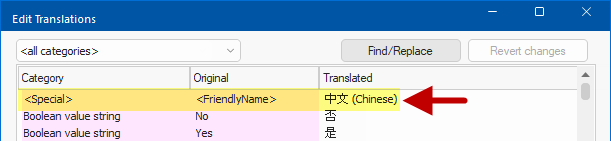
A line/row, where the first field is <Special> and the second is <FriendlyName> which defines the language name within the drop list box.
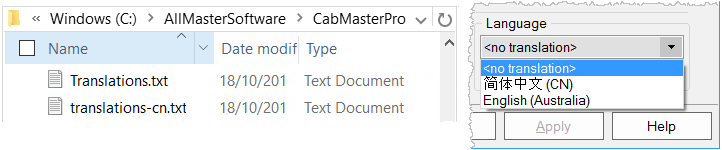
The <Special> line is optional but provides a friendly name for selecting this translation file manually from the Language drop list. This means that if a <Special> line does not exist, then the name of the translation (.txt) file is provided in the drop list.
For example, as shown above, the Chinese translation file (translations-cn.txt) does have a <Special> line defining that the <FriendlyName> is  , which is therefore displayed in the Language drop list (image below right).
* The "translations-enAUVic.txt" file does not have a <Special> row defining the name for the drop list, so only the file name is displayed.
The text (tab) file is displayed with the first 2 columns locked (pink) so end users cannot accidently edit them by mistake.
Each line in the "translation" file corresponds to one piece of text. There are 3 tab separated fields per line.
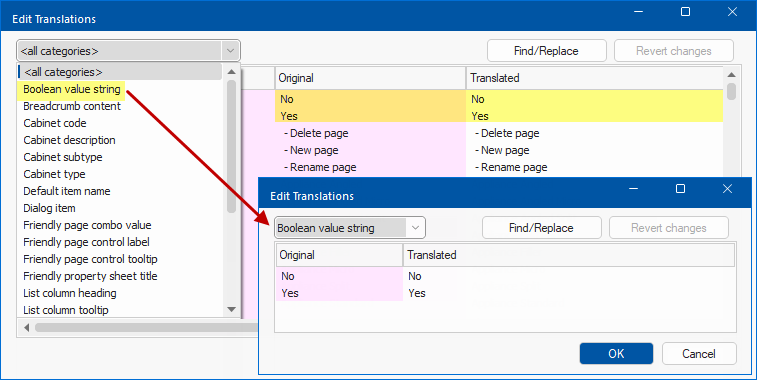
A filter for selection by Category is provided top left. The example shows selection by 'Boolean value string' category.
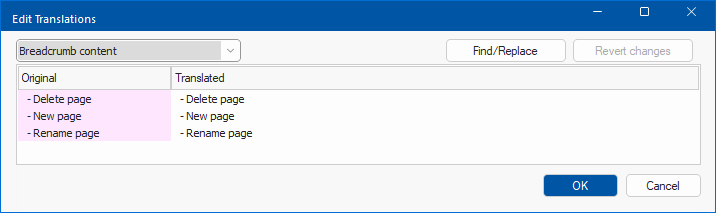
A category search for selection by 'Breadcrumb content' provides the following results.
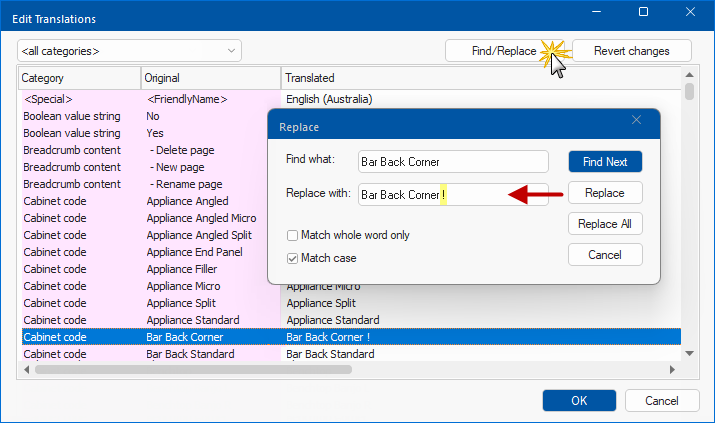
Find/Replace dialog is available within the translations editor for doing batch updates for common words.
If the Replace feature is used then the Revert changes button is made available and is equivalent to 'Cancel' . The editor is relaunched and any changes are reversed back to the original settings.
There is also support for 'extra' columns (e.g. Hint) which can be added at the end, in the external file.
The Hint column can be particularly useful when handing these files over to a professional translator, especially useful where the English phrase could have two meanings and enables the translator to come back with questions in the extra column at end.
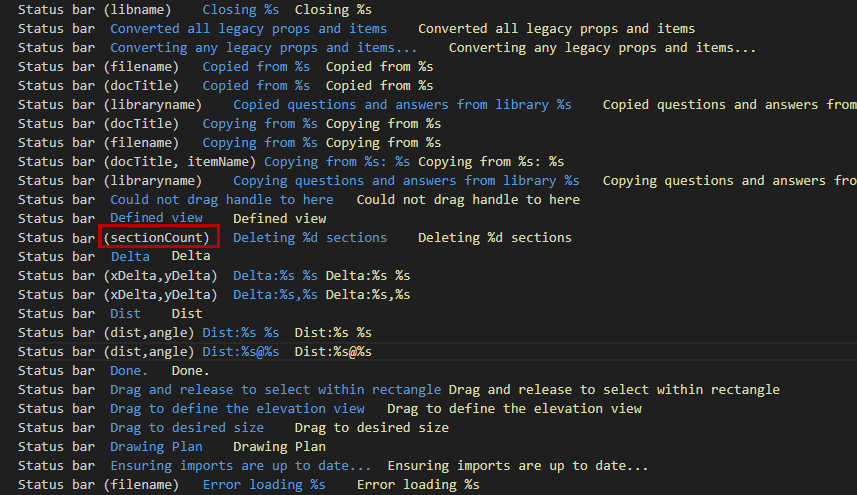
Enabling/ticking the Update file with unmatched text checkbox updates the translation file with any new pages or text that have not previously been used.
This is a three column file (screen grab doesn't show where tabs are)
Column 1: Status Bar
Column 2: The purpose of the (sectionCount) is to explain what the %d parameter is for…. e.g. a sectionCount of 5 would mean the user sees the string “Deleting 5 sections” or its translation… which may have the 5 in a different place in the foreign language string. (Therefore compatible with ChatGPT)
A Minute with Mike: How to use the translation feature to make CabMaster's terminology suit lingo specific to your business - whether that means you're changing "end panel" to "gable" (shoutout to our Queenslanders!) or you want to translate the entire program into a different language. [1:40 mins]