CabMasterPro User Guide
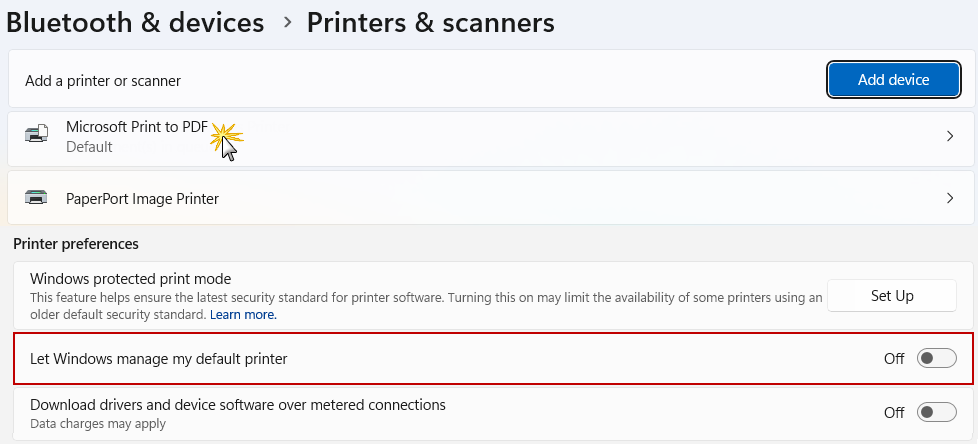
Printer preferences and properties in Windows (10/11) are accessed via Settings > Bluetooth & devices > Printers & scanners or the Control Panel's "Devices and Printers".
Printing Preferences control default job settings (color, 2-sided), while Printer Properties manage device configuration (port, sharing, driver details).
 Watch the Video: A Minute with Mike on how to print your plans to scale.
The video discusses using options on the File Options [F10] > General dialog and the File > Prepare > Scale dialog to maintain the correct scale.
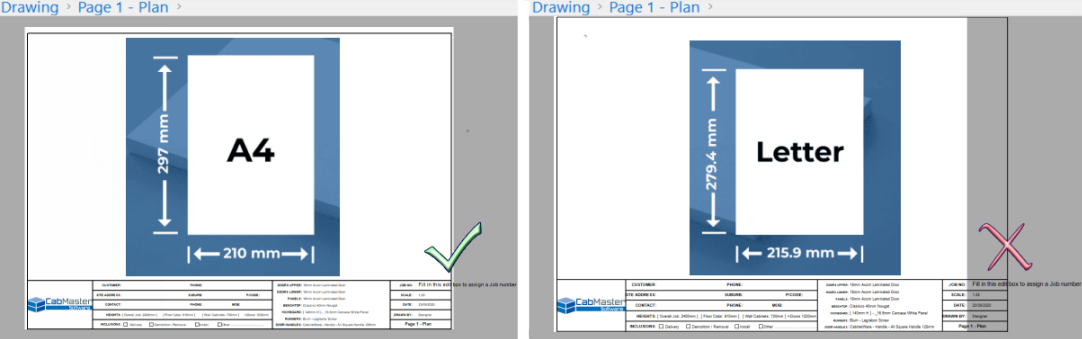
You may notice that if a template is applied, the template does not sit fully across the drawing plan page - see example below.
NB: Issues are caused if your printer preferences are set to Letter.
Click here to see an example of a template fully extending correctly across an A4/A3 page
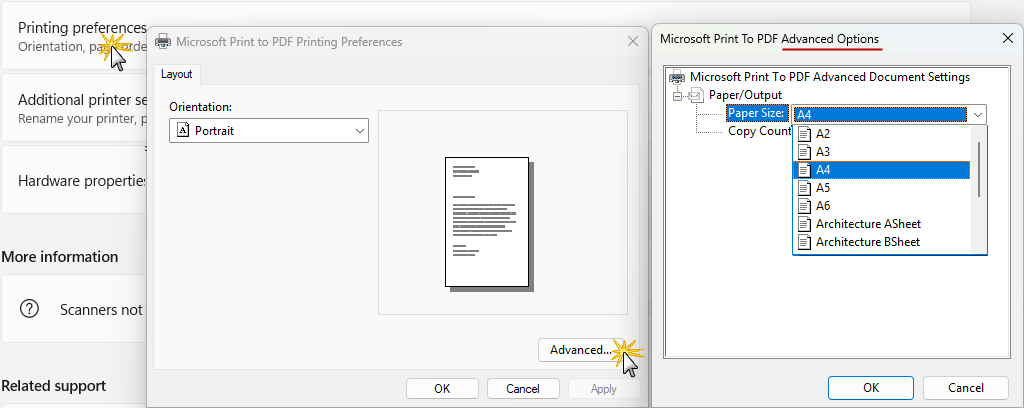
Preferences can be accessed via Printer Properties or Printing Preferences.
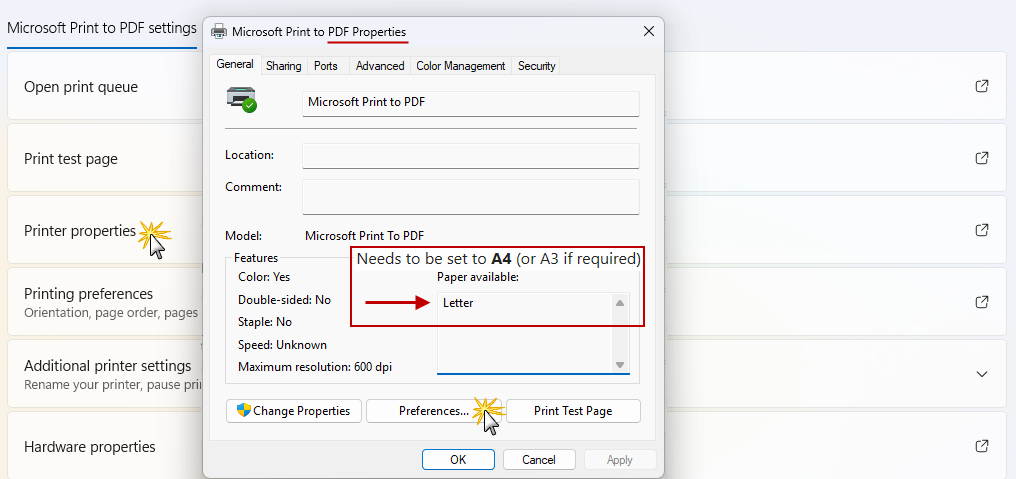
- In this example, we clicked on the Microsoft Print to PDF option, as shown above, to access Preferences on the Properties page.
All paper size settings for all printers needs to be set to A4 (or A3 if required) i.e. not Letter as this causes issues.
This only discusses PDF Printing but it applies to all your printers. Setting locations are dependent on the type of printer.
Even when Preferences are changed to A4, the Paper available may still incorrectly state Letter but this is not an issue.
If you are an administrator, you can set Printing Defaults via the Advanced tab in Printer Properties.
Unlike personal preferences, these settings apply to every new user who connects to that printer on the machine or network.