CabMasterPro User Guide
Templates and hardware are available for download from our website.
 in the Library User Guide.
 Go to the Home tab and click on the StoreMaster command button, as shown.
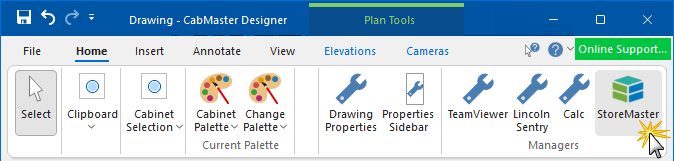
This option makes accessing StoreMaster easy, as it allows you to directly download addons from within CabMasterPro.
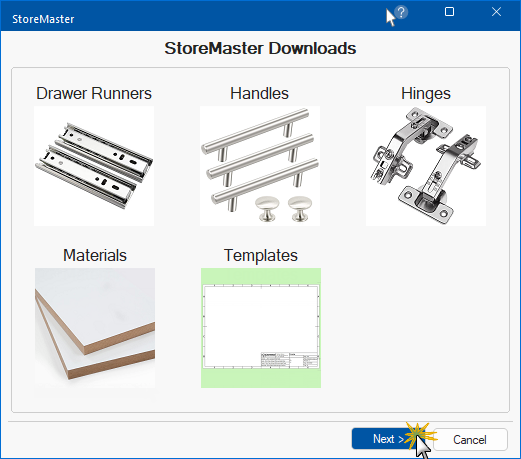
After clicking on the StoreMaster command button, you will also see available tables for download. Select the type of download required.
In this example, we have clicked on 'Templates'.
Clicking on any of these will turn the background of the image green, showing that is the option currently selected.
Once selected, press the Next button.
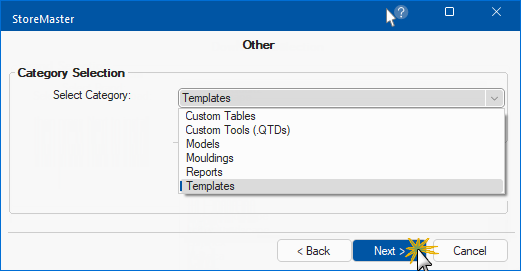
The next page will provide a list of all available categories.
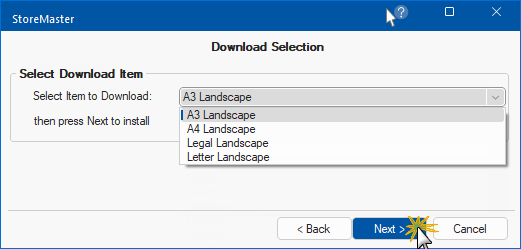
The next page will provide a list of all items that are available to download.
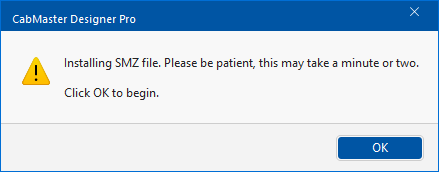
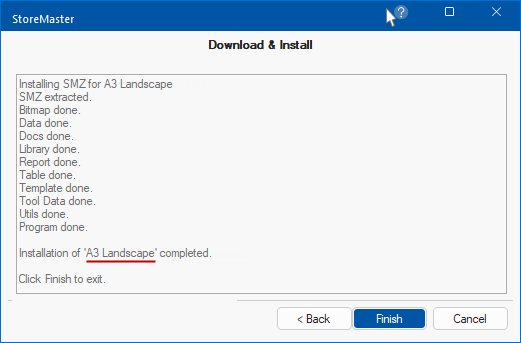
CabMasterPro will now install the files for you.
When complete, an informational dialog will confirm the completion status.
If there are any issues with the installation, contact our CabMaster Support Team for assistance.
Provided templates are located in <your CabMaster>/Template folder as a .qit file.
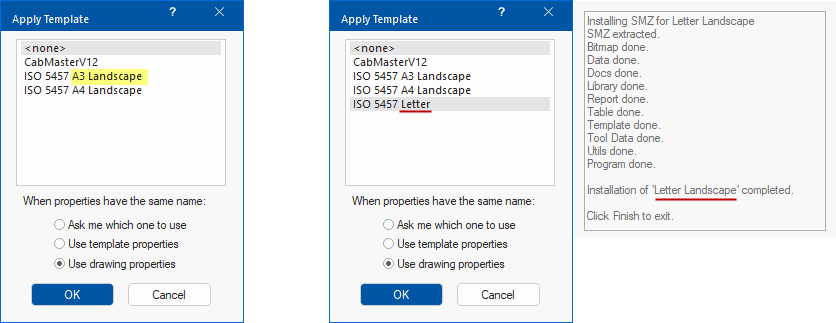
Click to view Template folder and .qit files
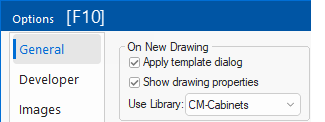
If you use templates then it is recommended that you enable the Apply Template dialog on the Options > General page, as shown, so that you can choose each time you start your application.
You can however, use the option from the File menu i.e. Prepare > Apply Template at any time.